
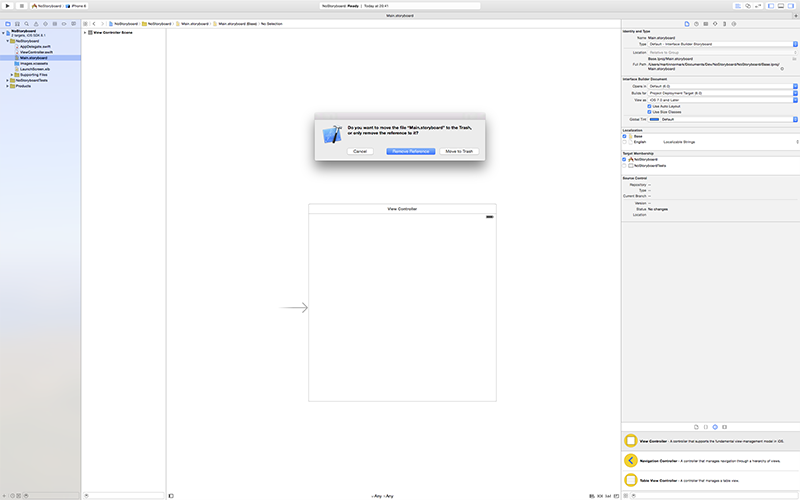
当我在Xcode中创建一个新的iOS项目,无论它是iPhone/iPad设备独占还是universal的,我做的第一件事总是删除Storyboard。
并且,和你们想象的不同,我并不是想用XIB来代替Storyboard,我完全不使用Interface Builder。与此对应的是,在Github上有不少Auto Layout的扩展(如Masonry、Snappy、PureLayout、Cartography),能帮你节省不少功夫。在将你的子视图实例化到视图控制器之后,你仅需要重写updateConstraints并设置约束条件,即可完成不同尺寸屏幕的适配。比如下面的示例使用了PureLayout库:
updateConstraints.swift
|
1
2
3
4
5
6
7
8
9
10
11
12
13
14
15
16
17
|
override func updateConstraints() {
super.updateConstraints()
self.buildStatusIndicatorView.autoPinEdgesToSuperviewEdgesWithInsets(UIEdgeInsetsZero, excludingEdge: ALEdge.Trailing)
self.buildStatusIndicatorView.autoSetDimension(ALDimension.Width, toSize: 10)
self.buildNumberLabel.autoPinEdgesToSuperviewEdgesWithInsets(UIEdgeInsets(top: 5, left: 15, bottom: 5, right: 5), excludingEdge: ALEdge.Bottom)
self.buildNumberLabel.autoSetDimension(ALDimension.Height, toSize: 23)
self.branchLabel.autoPinEdge(ALEdge.Top, toEdge: ALEdge.Top, ofView: self.contentView, withOffset: 10)
self.branchLabel.autoPinEdge(ALEdge.Trailing, toEdge: ALEdge.Trailing, ofView: self.contentView, withOffset: -10)
self.commitMessageLabel.autoPinEdge(ALEdge.Top, toEdge: ALEdge.Bottom, ofView: self.buildNumberLabel, withOffset: 10)
self.commitMessageLabel.autoPinEdgeToSuperviewEdge(ALEdge.Leading, withInset: 15)
self.commitMessageLabel.autoPinEdgeToSuperviewEdge(ALEdge.Bottom, withInset: 5)
self.commitMessageLabel.autoConstrainAttribute(ALAttribute.Width, toAttribute: ALAttribute.Width, ofView: self.contentView, withOffset: -20)
}
|

